Sunday, October 28, 2012

How To's for Apple TV - Viewing Photos from iPad or Laptop

How to Setup Your iPad and/or Mac Computer or Laptop to View Your Photos on Your Apple TV


Connect the Apple TV to your wireless network, by following the next steps:

  1. Connect your Apple TV box to your HDTV input connection on the back of your TV via a HDTV cable.
  2. Using the remote (that came with the Apple TV). Aim at the white light on the black box, make sure it is un-obstructed view.  Select Menu
  3. Use the right arrow on the remote's dial to move to Settings.
  4. Press the middle of dial to select WiFi Set Up.
  5. Then using the down arrow, select the Network Configure WiFi from the list of options.
  6. Select the name of your wireless network and press the middle of the dial to select it.
  7. If you don't see the name of the wireless network, select Other and then using arrow key, select Submit and enter password if needed.  Select Menu to go back to the screen saver.

Now for the iPad2 Setup -- for viewing photos from your camera roll and albums stored on your iPad, you will need to do the following:


  1. Select the Settings icon from the iPad2.
  2. Then select WiFi.  Make sure your device is connected to the same network.
  3. To activate Apple TV on your iPad, Tap on the home button twice and swipe towards the right.  You should see the iPod orange icon and the controls for the music player and sound controls.  Look closely and you will see the Apple TV logo which is a box with black up arrow, next to the player controls.
  4. When you click on this icon, you will be able to switch to and from your iPad, your network, and also the Apple TV and other devices.  Select Apple TV.
  5. Now press the home button once, and select the Photos icon from your iPad.  You should be able to select or make sure that the Apple TV is selected from this app.  By clicking on an album and photos you should see these on your display connected to the Apple TV black box.  You can operate a slideshow, swipe photos and such from your iPad.  These will be mirrored (by using Airplay) onto your display.
NOTE: When you have finished viewing your photos on your Apple TV from your iPad, you will need to switch back to your network to resume using the iPad device with your other apps that require wifi.  However,  when connected via Apple TV you can actually play your music through your TV speakers, along with mirror any of the apps or games from your iPad to the Apple TV.
NOTE:  iPad 1 users will find AirPlay playback will be limited to certain system apps such as Photos, Music, Videos, Safari (for embedded videos), YouTube and FaceTime, along with a few other third-party apps.

You can listen to music and watch movies and videos from your iPad and other output devices. Your content is stored on your iPad, which you use to drive playback to any of the other screens or speakers in your house. The advantage is that you could start watching a movie at home using AirPlay streaming to your HDTV and then when you need to leave the room, you can switch the display back to your iPad and watch it from there. This also works for your music.
Another example -- you can output the Scrabble board from your iPad using Airplay to an HDTV, and then use the free Scrabble Tile Rack on other iOS devices for a local multiplayer Scrabble game.


To connect your Laptop to Apple TV you will have to follow these steps:

For those users NOT running Mountain Lion System software on their laptop or Mac computer. 
  1. Run iTunes application on your computer, turn on Home Sharing under the Advanced Menu option. You will have to enter your Apple ID and password.
  2. Using the Menu button on your remote that operates your Apple TV, select Computers tab and you will be able to select the Name of your shared library. 
  3. You should be able to share or listen to  your iTunes music library or run Photos application on your computer and run a slideshow or view photos from the computer that are now displayed on the TV connected to the Apple TV box.
NOTE: As long as you leave Home Sharing on your computers, then they should be accessible under the Computer Tab of Apple TV.  Your computer does not have to be on to access this option and the photos to be displayed on your TV via the Apple TV box.  Movies and videos that you wish to watch must be stored in your iTunes library on your computer in order to play on your Apple TV. These must be playing on your computer and then they are played on your Apple TV if the Apple TV is selected from the Airplay drop down menu.

If you have Mountain Lion System and a computer with the right processor, it is much simpler to use the Airplay option available with that system to view your photos and mirror your computers screen.


  1.  If your Mac supports Airplay Mirroring, an Airplay Mirroring menu appears in the menu bar when an Apple TV is on the same network.  Turn on the Apple TV options in the pop-down airplay menu.   Note: Airplay must be turned on via Systems Preferences&Displays
    From this systems preference, you can also set the mirroring resolution to be the matched to the computer's screen or the Apple TV's screen. 
  2.  Once this option is enabled, you should be able to run any app or program to mirror what you see on your computer.

Sunday, September 23, 2012

Difference between Hidden Save As and Duplicate in Preview

Investigating the Difference between Save As … and Duplicate

Many have been missing the old Save As ... option that was available in prior systems on the Mac.  It has been replaced recently in Mountain Lion system with a Duplicate, Save and Export options.  

The Save option is there but is not entirely necessary.  The system has been given the intelligence to auto-save your documents in Preview, whether you click on Save in the File menu or not.  In fact, any changes that you make to a document are saved and can be retrieved by selecting "Revert to" in the File menu.


 By clicking on Browse All Versions, we are presented with various revisions, including the original document.  We can revert back to the original or earlier versions.


Controversial Hidden Revisions

There is some controversy about this intelligence that Apple has incorporated into some of its applications. It seems that when revisions are made, they are kept (hidden) within the resulting file. Good idea if you are prone to screw things up when editing and want to go back to the original; but it also seems that this extra data that exists is added to the size of the resulting file.  In some cases, this could also be considered a problem, should someone decide to access some possible personal data or information from the hidden data.  Well, that is another post, and I am trying to get to the other hidden element, which is the Save As ... option that we all were accustomed to in previous versions.

How to Access the Old Save As ...

The Save As ... is actually still available. It can be accessed by holding down the Option key while selecting the File menu.  You will see the old option Save As ... It replaces the option of Duplicate that exists in the visible File menu.

What is the Difference between the Two Options? 

Basically, the Duplicate option, creates a copy of the current document within Preview, that allows you to change the name on the title bar above the document.  This file will be stored in the same folder as the original document, but you will be reminded to save it when the file is closed or you can click on Save from the File menu before that time.  It will be the same size of the original document.

Depending on where in the process that you duplicate your image, depends on how much reverting to previous edits can be accomplished.  If you have a duplicate of an original document and cropped that document image and then duplicated that crop, then you will not be able to revert to the original at that point.  So it appears after cropping an image file, the size of the file becomes smaller than the original, and it makes sense that the previous full size image is not saved.

In one test, I duplicated the original, and used it as my starting image. I then cropped that image and saved the results.  In this case, I was able to revert to the original image.  Strangely, the file that resulted after the crop, was also reduced in size.  So, I wondered if it could be sent to someone via Airplay and whether they would be able to retrieve my original image.  Testing this by sending the file to my husband's computer, he was NOT able to revert to the original file; however I was.  So somehow, this makes me believe that some sort of data is still attached to that resulting file that somehow marks the location of original files on my computer alone. 

When you click on the Save As ... (using the option key while selecting the File menu), the old Save As ... dialog box appears, allowing you to name the file, choose where to put the file or even create a new folder to put it in.   The resulting file becomes smaller and no ability to revert to original was available.


How To Add the Old Save As ... Back to File Menu for Applications

If you want you can add the old Save As … back into your menu by adding it to the System Preferences> Keyboard> Application Shortcuts.  You will need to select the Application Shortcuts from the left-hand side of the window, then click on the + button to add in the name of the shortcut and the keys you want to use. 


Enter the Menu Title as Save As ... (to create the ellipse or 3 dots you merely, hold down the option key and type a semicolon ";"  To enter the shortcut keys, merely select them on the keyboard and they will appear in the box.  You can also selectively choose the applications, either All or the one you wish to add this shortcut, by clicking on the pop-down menu next to the Application request box.


Thursday, September 20, 2012

Reducing Size of PDFs in Mountain Lion

I am often limited by bandwidth in uploading and downloading files while traveling.  So, I decided to find a way to reduce the size of some of the pdfs that I would like to upload to my iBooks or to send via email to others.  Today's discussion will illustrate how this can be accomplished using ColorSync Utility and/or Preview.  This method will reduce most pdf files by about 40% depending on your custom settings that you create.   This method assumes that the user has installed Mountain Lion System on their Mac.  However, some of the details may be similar for Lion and may allow others to find a means to do so on earlier Mac systems.

Using ColorSync Utility

There is a way to reduce the size of a pdf using an app on your Mac called ColorSync Utility

You can find this app by running Launchpad on the dock and then find the Utility Folder or by using the Finder search for ColorSync Utility app.


Run ColorSync Utility

After running the app, you will need to duplicate the Reduce File Size Filter.

At the bottom of the opening window click on the Filter pull down menu.  On my machine, I choose Live Update from Filter Inspector (I'm using Mountain Lion and I'm not sure what the option is for Lion System).  This brings up the Filters Window as shown below.

Selecting Reduce File Size --- from the list on the left and moving over to the down arrow on the far right of this selection click on Duplicate Filter.  This adds the new filter called Reduce Filter Size Copy to the list on the left hand side.


Now clicking on the arrow next to Reduce File Size Copy, you will see the following options: Image Sampling and Image Compression.  You will need to change the settings in the Image Sampling (click on down arrow) to reveal the following:


Delete all the values in the boxes and change the Resolution to 100 and leave at High Quality.


 Now Open a pdf file or a copy of your pdf to test.

Select from the Filter at the bottom of the screen on left:  The newly created filter called Reduce File Size Copy.


Hit the Apply button and wait a few seconds or minutes (depending the size of the pdf that you are working with)

Now using Save As option -  give it a new name and save to your Desktop.  When comparing the size of the files, you should find a reduction in the pdf file size.

Moving the Custom Filter to Use with Preview

Now, if you prefer to use Preview to reduce your files or to export or resave in reduced form, you will need to add this filter manually to your library folder, so that it will appear as an option when using Preview.

To add this same filter to Preview as an option, you will need to:

Just copy your filter from

    /Users/YourName/Library/Filters/
 
to
     /Library/PDF Services/

 and the customized profile will be added to your Preview options.


To find this /Users/YourName/Library/Filters folder and your custom filter:

Bring up a Finder window, then hold down Cmd shift G and type in the path name above into the text box that appears on the screen with your username in place of YourName in the path.


Using the Cmd shift G again, type in /Library/PDF Services/ in the text box.  Now drag the duplicate file that is on your desktop into that folder.  You may be asked to Authenticate the move, and you will need to type in your Administrator's password. 

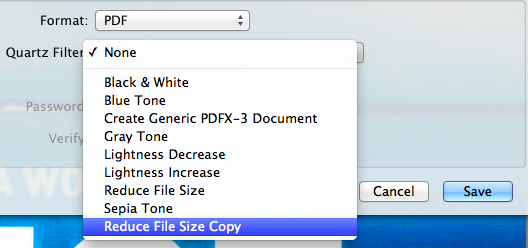
Now when you run Preview your custom option will be available for saving using the Quartz Filter - Reduce File Size Copy.