Showing posts with label PDF. Show all posts

Thursday, July 17, 2014

Using Documents App (by Readdle) to transfer epub files to iPad

Today, I downloaded an app called "Documents" by Readdle.  "Documents" is a full-fledge ePub reader, similar to iBook.  The reader option has font size adjustment, bookmarking, and searching options.  It is a very good app that is similar to another favorite app, GoodReader.  I use GoodReader currently to transfer ePub books from my Mac to my iPad using a USB cable and iTunes -- dragging and dropping books into the GoodReader app. 

"Documents" also allows me to transfer PDF and ePub books from my Mac to my iPad via iTunes, just like I do currently with GoodReader.   "Documents" offers an additional way to transfer my files employing a WebDav method.  A local WIFI connection via web browser is used.  The nice thing about this is that files do not have to be uploaded to the cloud to be transferred between devices and you do not need to connect a USB cable between the devices.

To get the "Documents" app for your iPad, click on this link:
https://itunes.apple.com/app/documents-by-readdle/id364901807?mt=8&uo=4&at=10l6UJ&ct=docs_desk_bot

Transferring files (audio, mp3, txt documents, ePubs, PDFs, and other file types) from a Mac to an iPad utilizes the following steps:

(1) Run "Documents" app on your iPad.  Tap on the "gear icon" in upper left-hand corner of the app screen.  Tap on Wi-Fi Drive and take note of the URL given in the text.  For example,  http://10.0.1.2


(2) On your Mac computer, run a browser (Firefox is good) and type in the URL.


(3) A message will appear on your iPad asking for permission to connect to another device with IP address similar to 10.0.1.2.  Allow connection to this device.


(4) The documents that are stored on your iPad should appear in the web browser page.

(5)  To move files from your Mac to your iPad, click on the "Browse" button at the bottom of the browser page (scroll down to see this button).  You should see a directory of your Mac files.  Select the file you wish to move to your iPad.  The name of that file should now appear next to the "Browse" button at the bottom of the web page.


(6)  Click on "Upload File" button. 

(7)  The file you wish to move should appear in the list of files on the web browser page and should also appear on your iPad.

(8)  You can close the tab in the Browser window when finished moving files.  This will disconnect the Mac and iPad.

You can read the ePub or PDF file directly from the "Documents" app on your iPad, by selecting its icon on your iPad.

Note:  you can also select the file and then select the "share" (up arrow icon) from the upper right hand corner of the iPad screen.  From here, you should see an option to "Open in" where you can then move the file to iBook if you wish.

Read more about Documents by Readdle at website:
http://readdle.com/products/documents/

Thursday, September 20, 2012

Reducing Size of PDFs in Mountain Lion

I am often limited by bandwidth in uploading and downloading files while traveling.  So, I decided to find a way to reduce the size of some of the pdfs that I would like to upload to my iBooks or to send via email to others.  Today's discussion will illustrate how this can be accomplished using ColorSync Utility and/or Preview.  This method will reduce most pdf files by about 40% depending on your custom settings that you create.   This method assumes that the user has installed Mountain Lion System on their Mac.  However, some of the details may be similar for Lion and may allow others to find a means to do so on earlier Mac systems.

Using ColorSync Utility

There is a way to reduce the size of a pdf using an app on your Mac called ColorSync Utility

You can find this app by running Launchpad on the dock and then find the Utility Folder or by using the Finder search for ColorSync Utility app.


Run ColorSync Utility

After running the app, you will need to duplicate the Reduce File Size Filter.

At the bottom of the opening window click on the Filter pull down menu.  On my machine, I choose Live Update from Filter Inspector (I'm using Mountain Lion and I'm not sure what the option is for Lion System).  This brings up the Filters Window as shown below.

Selecting Reduce File Size --- from the list on the left and moving over to the down arrow on the far right of this selection click on Duplicate Filter.  This adds the new filter called Reduce Filter Size Copy to the list on the left hand side.


Now clicking on the arrow next to Reduce File Size Copy, you will see the following options: Image Sampling and Image Compression.  You will need to change the settings in the Image Sampling (click on down arrow) to reveal the following:


Delete all the values in the boxes and change the Resolution to 100 and leave at High Quality.


 Now Open a pdf file or a copy of your pdf to test.

Select from the Filter at the bottom of the screen on left:  The newly created filter called Reduce File Size Copy.


Hit the Apply button and wait a few seconds or minutes (depending the size of the pdf that you are working with)

Now using Save As option -  give it a new name and save to your Desktop.  When comparing the size of the files, you should find a reduction in the pdf file size.

Moving the Custom Filter to Use with Preview

Now, if you prefer to use Preview to reduce your files or to export or resave in reduced form, you will need to add this filter manually to your library folder, so that it will appear as an option when using Preview.

To add this same filter to Preview as an option, you will need to:

Just copy your filter from

    /Users/YourName/Library/Filters/
 
to
     /Library/PDF Services/

 and the customized profile will be added to your Preview options.


To find this /Users/YourName/Library/Filters folder and your custom filter:

Bring up a Finder window, then hold down Cmd shift G and type in the path name above into the text box that appears on the screen with your username in place of YourName in the path.


Using the Cmd shift G again, type in /Library/PDF Services/ in the text box.  Now drag the duplicate file that is on your desktop into that folder.  You may be asked to Authenticate the move, and you will need to type in your Administrator's password. 

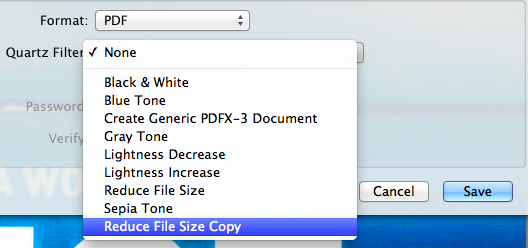
Now when you run Preview your custom option will be available for saving using the Quartz Filter - Reduce File Size Copy.