How to: Create, Clean Hidden Files, and Organize
Music for USB Memory Stick Connected to
Land Rover LR4 2011
The Land Rover LR4 (2011 model) has a connector for a USB memory stick. We planned on using one of the 16 GB sticks we ordered online to store some of our iTunes music library or mp3’s. My husband loaded on some of his music in the form of mp3’s by dragging and dropping them into the USB stick mounted to his Mac. Here are some of the things he encountered:
(1) The USB stick needs to be FAT or FAT32 format (requirements from Land Rover). And most memory sticks sold are already FAT32 formatted.
(2) The mp3 songs placed in the Root Directory did not appear on the Land Rover display.
(3) The songs did appear okay, if placed within a folder in the Root Directory (i.e., in a folder on the first level of the directory). He proceeded to make several folders with varying number of mp3’s in each folder.

(4) He found that he could organize the mp3’s in nested folders by Genre, Artist, Album, Songs - the Land Rover was able to access the files in the nested folders. The Land Rover display allows you to browse in each nested folder. So arranging in nested folders gives a little more organization in helping to find and play groups of songs.
Suggestion: You might want to have the top level folder be a genre folder, called "Country" which contains various Country Artists in folders named: Alan Jackson, George Strait, Reba McEntire and within each Artist Folder you would put their various Album Folders and inside the Album Folders you would have the songs for each album. When songs are played they are played from the inner most folders to the outer most folders with all songs in one album folder in alphabetical order for all the songs, then all the albums, then all the artists, then the genres.


Suggestion: If you wish to make playlists - you could create a folder called for example: My Playlists. Inside this folder you could have for example: My Favorite Playlist (where you had songs from multiple albums, artists and genres organized in the folder) or one called Christmas Playlist (that contained Christmas music from various albums and artists) and additional folders for each type of playlist you wanted to have available.
Note: If you have a specific order you want to hear the songs and don't want them played in alphabetical order, append track number at the beginning of each song to keep them in the track order you wish (i.e. 01 songname, 02 songname, 03 songname)
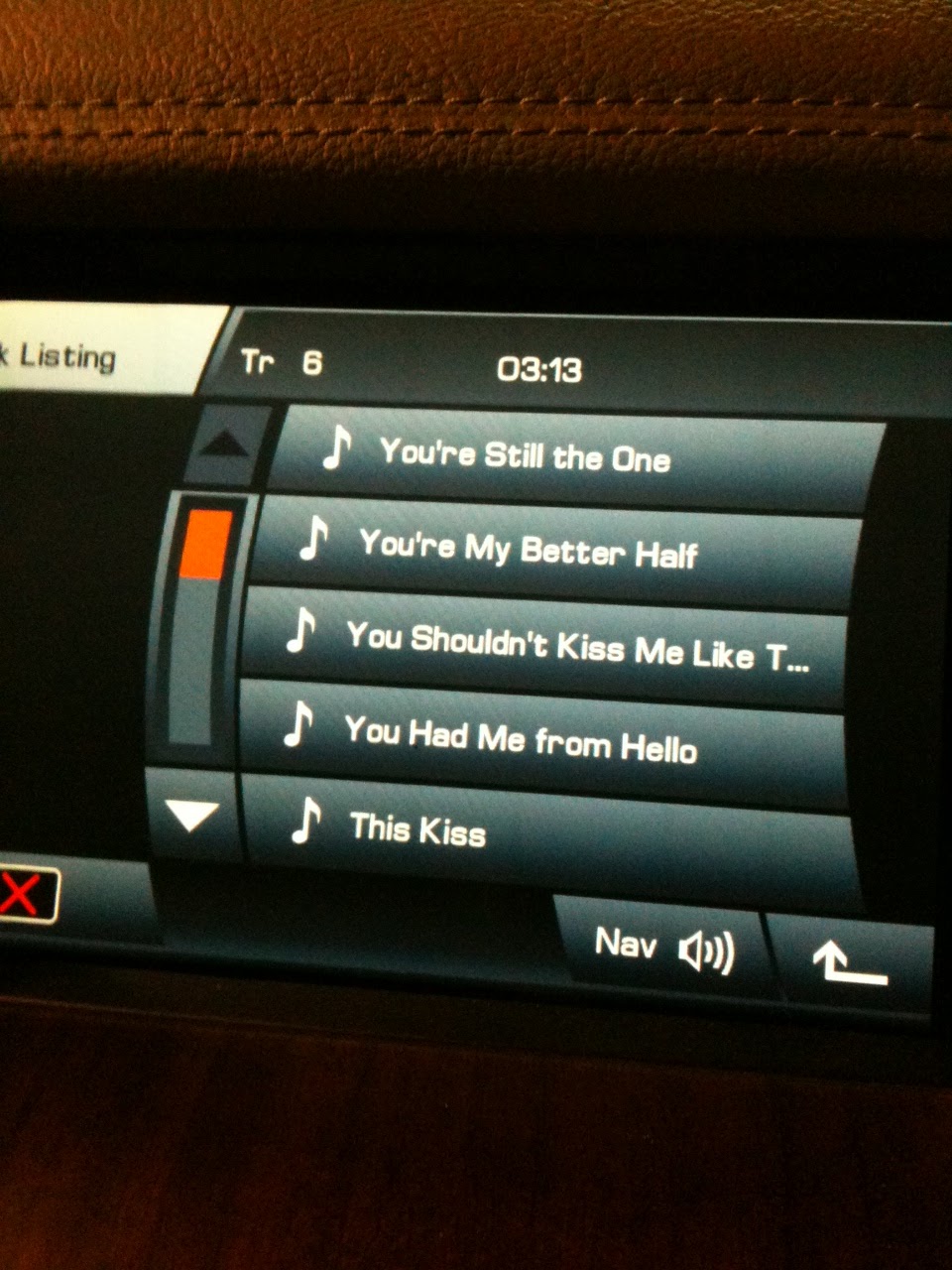
(5) When the mp3 files are copied from a Mac to the USB memory stick additional files show up in the folders one for each mp3 song file and these additional files do not play on the Land Rover audio player. These extraneous files appear at the top of the LR4’s displayed list of songs with a “._” preceding each song name, as in this display example below:

._03 Per Amore <-- extraneous file which appears on the Land Rover display song list.

03 Per Amore <-- this is how the all the song titles should appear on the Land Rover display, i.e. without the "._".
When "03 Per Amore" was selected the song plays as it should. But when "._03 Per Amore" was accidentally selected, the entire sound system hangs for about 20 or 30 seconds which is, of course, very annoying.
I researched what could be done to eliminate or strip these extraneous files from the folders on the USB Stick. I came across a freeware program called “ Hidden Cleaner’. The application Hidden Cleaner is a simple drag and drop utility that cleans and ejects USB devices like MP3 players, USB sticks. It deletes the hidden files OS X creates like .DS_Store, etc.
My husband loaded Hidden Cleaner application onto his Mac. Connected the USB memory stick to the Mac. The USB memory stick icon appears on the hard drive and he dragged and dropped the USB memory stick icon on top or into the Hidden Cleaner application. The USB memory stick icon is automatically unmounted from the computer display, once the extraneous files are eliminated. He disconnected the USB memory stick from the Mac, inserted it into the Land Rover LR4 connection in the center console. All the extraneous files were no longer visible on the Land Rover display and the music folders appeared on the screen in alphabetical folder order. He could select folders, browse inside of the folders and nested folders and see the list of songs within the folders to play.
Results: It worked!
Note: This should work equally well with the other Land Rover models (Range Rover Sport, etc) that have the USB port as well.
Technical Note from husband: When transferring (i.e. copying) Macintosh files to a Windows formatted drive (USB thumb drive with FAT32 format in this case), the Mac also transfers meta data just in case it is needed. This meta data is in the form of an additional very small file for each file transferred. Most computers systems that do not need the meta data simply ignore the meta data files which are easily recognized (e.g. by the period and underscore as the first two letters in the filename). But, since the Land Rover’s system is not ignoring these extraneous meta data files they need to be removed. This additional small amount of “meta” data might contain, for example, the size of a picture or document when it was last closed by the user so that when it is opened the next time it can be the same size it was when it was last closed. It might also contain other data such as the color of a folder’s background.
Tweet