Showing posts with label midis. Show all posts

Saturday, July 30, 2022

Playing Midis from my iPhone on my Mark IV Disklavier via Bluetooth


Make sure your piano is ON and not in standby.  


I run Disklavier Controller app from my iPhone to activate my piano: I select a song and play, then stop.  


        Note: Use the app that is associated with your piano to play a song to make sure the piano is active or just go to your piano and turn on and play a song.


I connect my Bluetooth device which is hooked to my piano by selecting
midimittr app.  

    Note: you may have a different app that allows you to connect your bluetooth device located on your piano in the midi port.


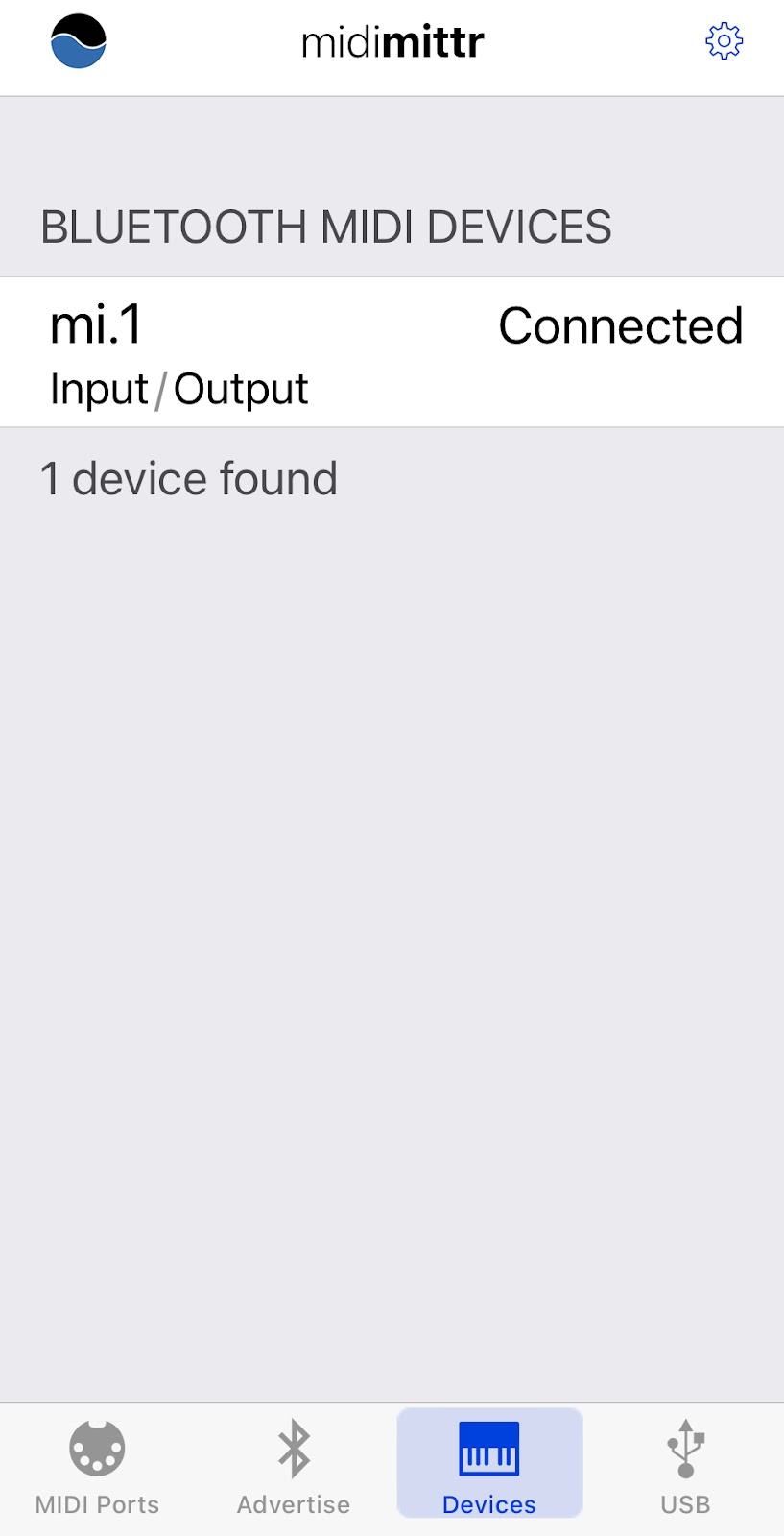
If using midimittr, select Devices icon from lower bar on screen.  The following screen should appear.  Click on "Not Connected" next to your device (i.e. mine is m1.1).  Eventually "Connected" should appear next to your device.


I use an app called MidiOnStage for iPhone to store midis and to play via my bluetooth device to my Mark IV Disklavier piano.


If you use MidiOnStage app, you need to click on Settings>General and scroll to bottom of screen to Midi Output and select your device.


MidiOnStage allows multiple ways to load midis from Mac laptop  to the app.  Note: The midis added to MidiOnStage songs list are stored in the Files app on your iPhone.  

You can use Airdrop to move a midi or an entire folder of midis directly from your laptop to your iPhone and into MidiOnStage.  

Click on a midi filename on your laptop, hold down the option key while clicking on filename, then select Share option and select Airdrop to your iPhone.  Then select MidiOnStage from Airdrop menu that appears on your iPhone. 


Note:  If you are moving an entire folder of midis,  you will need to select a path to Files >On My iPhone>MidiOnStage folder from the Airdrop options menu.

Using MidiOnStage, you can create Playlists by using the + icon at top of the Playlists screen. You will be asked to enter a Playlist name to create.  You can then use the various screens and + buttons to maneuver and add songs to your playlist.  


You can select a song to play or an entire playlist.  click on play button to start playing.  Your midi songs should play on the piano.  


Tuesday, April 03, 2018

Transferring Midis to Disklavier using FromToPC folder

When the latest edition of DKVBrowser for Mac failed to function on my MacBook Pro, I was heartbroken. It still runs on an older Mac that I have kept around here for editing purposes.  One of the nice features of DKVBrowser was the ability to transfer new midi files I downloaded from the internet to my Mac to the piano using wifi connection.

Even though I can't use the DKVBrowser on my MacBook Pro running Sierra 10.13.4 — I have figured out the steps to still transfer midis from my Mac to my piano via wifi.

This will be a great help as most laptops and newer computers don't have floppy drives or  CD drives.  I tried using a thumb drive which failed -- I believe due to being formatted as a Mac thumb drive. Maybe if I had a PC formatted thumb drive my Mark IV Disklavier would have recognized it.  I was spoiled using DKVBrowser to easily move midis to my piano via wifi.  So here are the steps to do so without DKVBrowser application. 


UPDATE:  Make sure your piano is ON ... out of standby.  Just turn on piano and play a song. Then stop song. 


On MacBook Pro, use the Go menu in the menu bar of finder.  Select Connect to Server from pop down submenu  and then from the upper right hand side of window select the pop down arrow and click on DKV#####


Click on Connect.

A popup window requesting name and password to server appears.
Fill in and click on connect.  (Note:  you may not need a password.)
Select FromToPCYou can use Guest to sign in - that works too!


The FromToPC  icon should appear on the Mac desktop.
Drag and drop any midi files that you wish to transfer to your piano into the icon.

Next, you will need to refresh this FromToPC directory using the piano's PRC remote, before the files will show up in the FromToPC directory on your piano's PRC remote screen.

Select the  FromToPC directory from the PRC
Select the root directory which is  a "/"

Select the Function button below and use "Refresh" option.
Which should  reload all the new midi files that you transferred via wifi so that they appear in the directory of the PRC remote screen.
You can now play them on your piano using PRC remote.

You can also run the Disklavier Controller app on your iPhone and can see the midis in the FromToPC directory on the app and play them.


You should also eject the FromToPC icon from your Mac’s desktop when finished.

Additional Note: Today, I was able to upload midis using my iPhone and app called "GoodReader" to my Mark IV Disklavier.  I save midis I find using iPhone Browser to my GoodReader app using the share icon.  GoodReader has an option to connect to servers.  Then I setup my piano server in GoodReader.  I select add server using SMB type server and adding the dkv###### address and add to my GoodReader app.   I then upload the midis saved in GoodReader to my piano's hard drive FromToPC directory.