Showing posts with label Keyboard Shortcuts. Show all posts

Wednesday, August 29, 2012

Alex Reads Me My PDFs

While on my treadmill, I try to do something productive to keep my mind occupied and less on the exercise.  Lately I've been trying to read some pdfs of books or manuals while walking or cycling in the fitness center.  I really like audio books as they are easier to manipulate, especially on the treadmill.

I have been pursuing the means to have my pdfs or books read to me. I have found that there are a couple of ways to accomplish this feat if you don't mind a robot reading to you.

First Attempt - Using Voice Over with iBooks

First, I tried using the built in "voice over" option on my iPad. This entails enabling "voice over" in the Settings of your iPad. Under General, you will find "accessibility" option> triple click home button> which I set to "voice over."  When you want something read to you on your ipad, you enable the voice over by hitting the home button rapidly in succession three times.  When you do this, the other home gestures get really confusing. Selecting something then requires two clicks of home button instead of one.  This can be frustrating at first.  Usually I only turn this feature on after I have started iBooks.

Once I have iBooks running and have selected a pdf file to have read, I then triple click the home button turning on the voice over (which is a woman's voice).  Then you have to select the first word or sentence (which can be tricky) and using two fingers swipe downward.  The voice will start reading and continue through the article.  It is pretty frustrating at times, but once it is engaged, works for the duration of my workout.

Second Attempt - Audio Created Using Cntl Clicking Selected Text

Today, I decided to try a different method.  The Mac system allows you to select text in a pdf file that you load into Preview, and then to control click the selected text.  You will see an option to send text to iTunes.


You have a choice of voices (I select Alex).  You choose where to put the audio files in iTunes.  I usually just put them in the Music section.  


Generally, I select one chapter or a section of the pdf or book.  I send each to iTunes.  Using command I in iTunes you can enter the author's name, edit the chapter title, add a track number and any other information you wish like Genre: Books to each audio clip.  


When I finish saving each track or chapter to iTunes, I then create a playlist, sorted by track to get them in order.   


 Moving Audio Files to My iPad without Syncing

Next step is to move these files to a folder on your desktop.  Using command-shift N, create a folder on your desktop. Now select all the files in the playlist and drag them to the new folder.

Note: I have set my iTunes preferences> devices> to NOT auto-synch my devices (ipods, ipads, and iphones).  


Run iTunes.  Connect your iPad to your Mac. Your iPad should show up under devices in the left-hand side of the iTunes window. Select Apps tab.  YOU WILL NOT BE SYNCING.
To move the files to your iPad without having to sync your iPad is accomplished by using the File Sharing option available under the Apps tab.  SCROLL DOWN to see this section.


I use the GoodReader app to read pdfs and also to access documents from Google Drive (Google Docs) and to also listen to audio files.  When I scroll down in my Apps Tab, I see a list of apps that allow transfer of files from my Mac to my iPad/iPhone without having to sync my devices.  It is especially nice to use this method to add files to your devices that are on your Mac laptops or other computer than the one you originally used to sync your device.

I select GoodReader from the left hand column and then see the files that are currently stored on my ipad in the right-hand section of the window.  I then select all the files on my desktop in the newly created folder and drag them to this right-hand section.  They are now quickly moved to my iPad. DO NOT click the SYNC button - it is not used to transfer these files!

I then eject my iPad using the small up arrow next to my iPad device name in the far left-hand column (under Devices) and disconnect my iPad.  Whoala!  I now have the audio files in GoodReader My Documents section and I merely click on the audio to listen to the book.  Alex reads to me.


Wednesday, April 18, 2012

Time Zone Dilemma Revisited

Now that I am back in my own local, I find that a lot of my iCal appointments are incorrect. Scheduled appointments are now on wrong days and at wrong times. It even said that today was Thursday in my iCal calendar, when it is actually is Wednesday. This is not good when you have important engagements or appointments that you need to attend.

I checked out the System timezone settings and such on all my devices, MacBook Air, MacBook Pro, iPhones and iPads when I arrived home to the new time zone. Content that this would fix everything, I started getting reminder calls from my dentist and doctors for upcoming appointments. When I checked my iCal dates and times, they were all wrong.  So it seemed that something else was wrong.

This morning I checked the iCal preferences under "Advanced" tab and unchecked the option to turn on time zone support.  This helped with displaying the correct day of the week for my calendar.


So, I googled "iCal time zone support" and found a link to an excellent article posted online.  I wanted to share this link: http://www.macobserver.com/tmo/article/Understanding_iCal_Time_Zones/
with everyone so that they can have a reference that addresses the time zone issues when traveling.

Enjoy! Thanks Jeff Gamet for a well-written article.

Update: You can benefit from  setting up "Time Zone Support" as ON when traveling if you are setting up phone calls from another location for certain times specified in the other person's time zones (i.e. not the current location's time). The burden of having to specify "floating" for all of your other meetings (e.g meetings where you are currently located) shouldn't outweigh the benefits of being able to set up a meeting in another time zone.

If you are traveling a lot, then ...

(1) Make sure you have turned on Time Zone Support on all your devices and laptops and computers.  On an iPad or iPhone, select Settings> Mail: Contacts, Calendars> Time Zone Support

(2) Whenever you create a new event in iCal, you will notice that there is a new pop-up menu to choose from where you can associate a time zone with your events. IMPORTANT:  you will have to manually choose the appropriate time zone for every one of your appointments.

(3) Then, while you're traveling, in the upper right-hand corner of iCal, there is a global pop-up menu that lets you choose which time zone your entire calendar is currently based in. As long as you have manually edited all of your appointments with the appropriate time zone, you will have an accurate calendar. But if you did not manually choose the right time zone for even a single appointment (or if you forget to change the global pop-up menu while you're browsing your calendar), your appointments will jump around and be very confusing.


Thursday, October 13, 2011

iOS 5 Tip: Creating Your Own Keyboard Shortcut on iPhone, iPad

You can create your own keyboard shortcuts by going to the Settings on your iPhone or iPad that has been updated to iOS 5.

Select the Add Shortcut, enter some keys and the corresponding message or phrase that will replace that text shortcut when you type a message or note.

Tuesday, May 03, 2011

Bluetooth Keyboard Shortcuts That Work with iPad/iPhone Devices

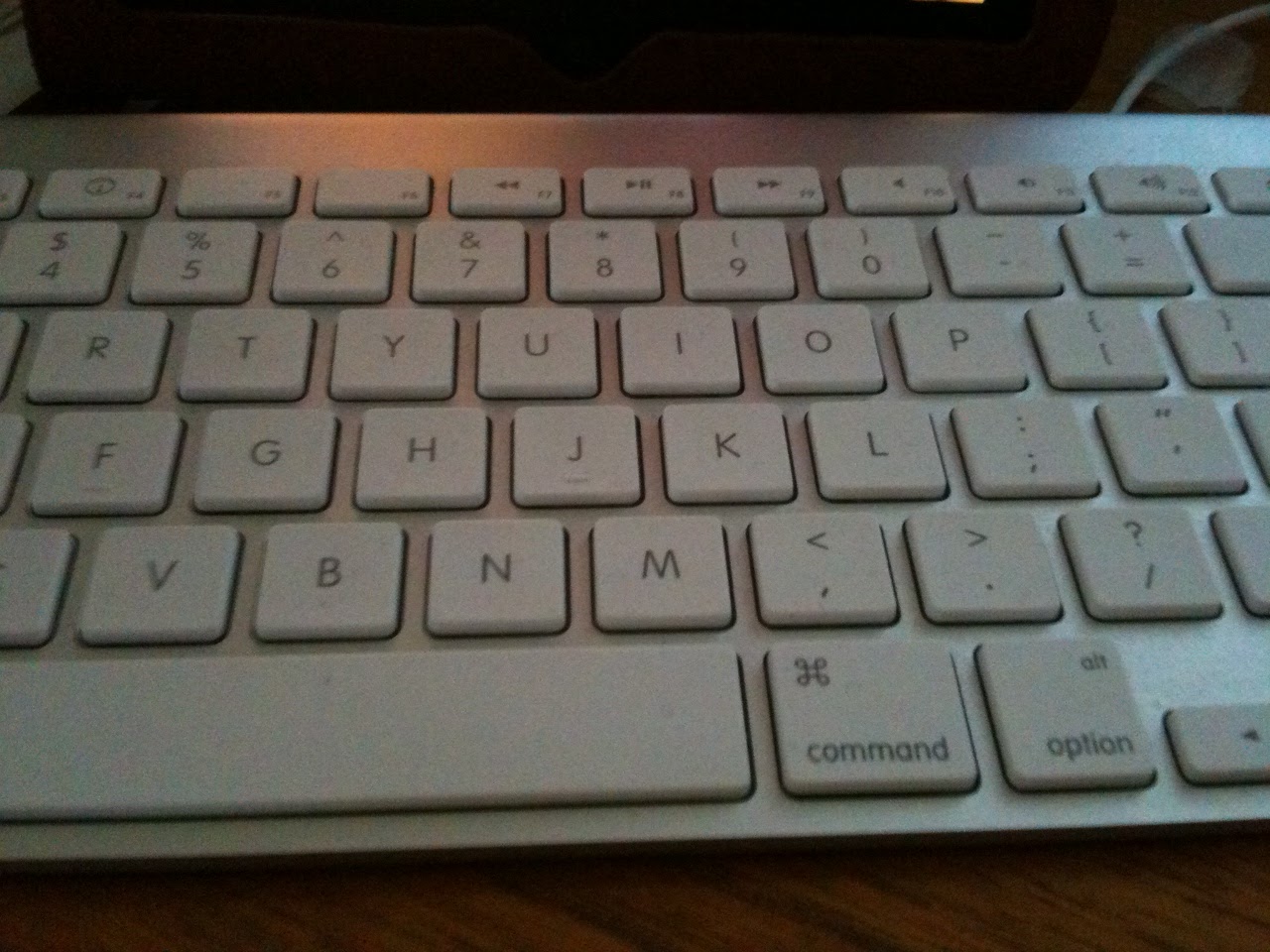
If you use an iPad for any type of writing or journaling, you probably use Apple's wireless bluetooth keyboard.  I decided to post a list of some of the keyboard shortcuts that work with the keyboard bluetoothed with an iPad or iPad 2 or even your iPhone.

To pair your keyboard with your device, select General>Bluetooth in the Settings options.  Turn bluetooth ON and also turn on your bluetooth keyboard by pushing in the button on the keyboard that is located on the upper right-hand side of the physical keyboard.  Your mobile device will try to discover the bluetooth keyboard and once that it finds the keyboard, a dialog box requesting you to enter a PIN number on your keyboard will appear on the screen.  Once the PIN has been entered, be sure to hit the return or enter key.  You should then be connected and can start typing away.

Keyboard Shortcuts for Controlling Device Settings:
F1 - decreases the brightness on the device screen
F2 - increases the brightness on the device screen
Space Bar -  when your screen has gone to sleep will wake it up.

If you want to play some iPod app music in the background while you type
F8 - play or pause media
F9 - navigate forwards for media playing, next song
F7 - navigate backwards for media playing, previous song
F10 - mutes the media
F11 - decrease the volume for the media playing
F12 - increase the volume for the media playing
Option (or Cmd or Shift or Cntrl) + F9 - skips to the next album
Option (or Cmd or Shift or Cntrl)+ F7 - returns to the previous album

Keyboard Shortcuts for Selecting Text or Moving within text paragraph or document:
Cmd A - Select All
Cmd C - Copy Text
Cmd X - Cut
Cmd V - Paste
Option + Delete - delete entire words one at a time to the left of the cursor
Cmd Z - Undo
Shift + Cmd + Z - redo

Shift + Right Arrow - selects/deselects letter by letter moving to the right
Shift + Left Arrow - selects/deselects letter by letter moving to the left
Shift + Up Arrow - selects/deselects text when moving up
Shift + Down Arrow - selects/deselects text when moving down

Option + Shift + Right Arrow - allows you to select/deselect text word by word when moving right
Option + Shift + Left Arrow - allows you to select/deselect text word by word when moving left
Option + Shift + Up Arrow - allows you to select/deselect text line by line when moving up
Option + Shift + Down Arrow - allows you to select/deselect text line by line when moving down

Cmd + Up Arrow -  move the cursor to the beginning of document
Cmd + Down Arrow - move the cursor to the end of document (also works with Cntrl)
Cmd + Right Arrow - move the cursor to the end of the line  (also works with Cntrl)
Cmd + Left Arrow - move to the beginning of the line

Tab  - indents the text
Right, Left, Up and Down Arrows - will move the cursor in the body of the text
Eject Button (top row right-hand side of keyboard) - disconnects bluetooth keyboard to allow accessing the virtual keyboard on the device
Cmd + Spacebar - select a different (International) keyboard if one has been added to the list of available keyboards in the General Settings for the device.

Keyboard Shortcuts to Yield Special Symbols - Using option key and letters/numbers yields special symbols, and using option shift and a letter/numbers produces some additional symbols.  Option w - yields the symbol ∑
Option r - yields the registered trademark symbol ®
Option d - yields the symbol sigma ∂
Option p -  yields the symbol for pi  π
Option g - yields the symbol for copyright ©
Option 2 - yields the symbol for trademark ™
Option x - yields the symbol for approximately equal to ≈
Option v - yields the square root symbol √
Option k - yields the degree symbol ˚
Option 4 - yields the cent symbol ¢
Option j - yields the delta symbol ∆
Option , - yields the lesson than and equal to symbol ≤
Option . - yields the greater than and equal to symbol ≥
Option / - yields the division symbol ÷
Option n + (then release option key) followed by letter n - yields the ñ
Option e = (then release option key) followed by letter e - yields é
Option ` = (then release option key) followed by a or e or i- yields à and è and ì
Option 5 - yields the infinity sign ∞
Option 8 - yields the bolded bullet •
Option ; - yields the ellipse symbol (3 dots in a row) …
Option b - yields the integral symbol ∫
Option 1 - yields the upside down exclamation point ¡

There are also a number of symbols that can be typed when using the shift key along with the option key and a letter/number
Option + Shift + k - yields the apple symbol 
Option + Shift + 3 - yields the less than symbol ‹
Option + Shift + 4 - yields the greater than symbol ›
Option + Shift + letter o - yields the null symbol Ø
Option + Shift + 2 - yields the Euro symbol €
Option + Shift + equals symbol = - yields the ± symbol
Option + Shift + left bracket [ - yields the right double quotes ”
Option + left bracket [- yields the left double quotes “
Option + Shift + right bracket ]- yields the right single quote ’
Option + right bracket ] - yields the left single quote ‘
Option + Shift + front slash / symbol - yields the upside down question mark used in Spanish ¿

Presently, not all keyboard shortcuts work with the iPad and iPhone, such as some important ones for bold, italics and other text formatting within apps.  Not all apps will allow using the keyboard shortcuts.  The trick of hitting the space bar twice to add a period and start a new sentence  does not work. 


Sunday, May 01, 2011

MacBlend's 101 Keyboard Shortcuts App for iPhone/iPad

It is always handy to have a list of keyboard shortcuts to use while using a Mac computer.  One of my Twitter friends and Seattle's Mac guru, MacBlend has a great app that supplies you with 101 Keyboard Shortcuts and a quiz to test you on what you learn.  


Matt at MacBlend, also provides training sessions in person or via video chat training using innovative means to learn all about your Mac computers.   He has a great site which has lots of useful information.   You might want to check out his clever videos under the MacBlend TV tab and his FREE eBook entitled "20 Ways to Save Time on Your Mac".   I highly recommend following his blogs and check out his site to schedule a coffee session for some useful tips and guidance in making the best of your Mac computer.

I look forward to the future MacBlend apps and updates. I am hoping that he will add in some search capabilities to help find a specific shortcut within the 101 Keyboard Shortcuts for Mac, or possibly a reference list by Mac App or type of keyboard grouping.  For example, it would be nice to have a section of just those screen capture keyboard strokes together on one screen or to pull them up if I searched by tag "screen capture".