Tuesday, September 22, 2009

Making My Applications Handy

How to: Accessing All My Applications from My Dock

I decided today to put my Applications Folder in my dock. I located it to the right of the dashed divider in the dock where applications reside on the left and folders on the right.


When I click on the newly added ‘Applications Folder’ residing in my dock (which is actually an alias of the actual folder that still resides on my hard drive), it reveals all my applications and folders in one easy to find and click ‘Stacks’ window.


If I wish to click on a folder in this window, say my ‘Utilities’ folder, it will open a ‘Stacks’ type window revealing all the Utilities applications and sub-folders, where I can readily click on one. Note, also the arrow in the upper left-hand corner of this sub-stack window. This arrow will take you back to the applications stack window. The ‘Open in Finder’ arrow still exists in this stack window that also allows me to access files physically from their location in the finder. Clicking anywhere on the desktop closes the stack window.

Monday, September 21, 2009

iPhone Users Control Party Mix

How to: Use iTunes DJ and Remote App on iPhone

iTunes has a feature called ‘iTunes DJ’, which allows a user to create and run a playlist on a computer on a local network. Other network users can connect to the network, choose songs to be played and to vote on selections to be played. I have my network setup using an Airport Express, so that I can play my iTunes through speakers in my living room and on my outside deck. We can use iTunes DJ, to pre-select a party playlist and allow our guests with iPhones and Remote app to control the playlist.

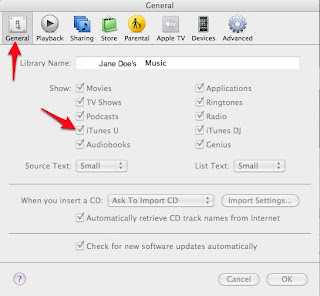
To use the iTunes DJ, make sure that you have checked ‘iTunes DJ’, in the iTunes Preferences, General Tab options.


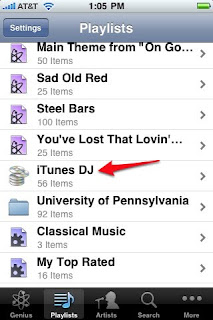
Select ‘iTunes DJ’ to randomly generate list from Music library or playlists in your library. ‘iTunes DJ’ is located under ‘Playlists’ on the left-hand side of the iTunes Window.
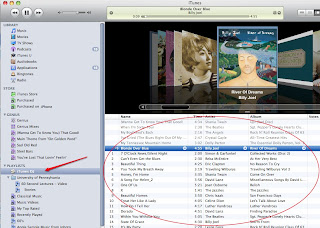


Select ’Source’ pop-down menu in the lower left-side of the playlist window to select to generate the iTunes DJ playlist from the entire Music library or from the playlists or Genius Mixes or Playlists.
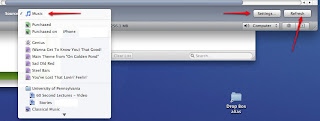


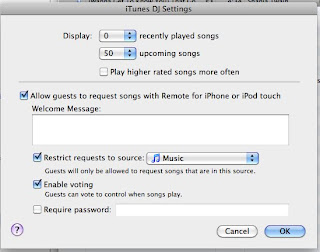
Then select ‘Settings’ in the lower right hand corner of the list window. Options to display can be selected for ‘number of songs recently played’ and ‘upcoming songs’, as well as option ‘play higher rated songs more often’. Guest can be allowed to ‘request songs with Remote for iPhone or iPod Touch’ , a greeting message can be entered and voting can be enabled to give guests control over when songs play. Password can be entered.


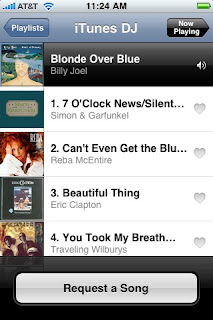
Guests can access voting and requesting of songs from their iPhone or iPod Touch, ‘Remote’ app. First they launch the ‘Remote’ app, then select the ‘iTunes DJ’ option from the remote app settings menu. The name of the playlist and description should appear and this is selected.
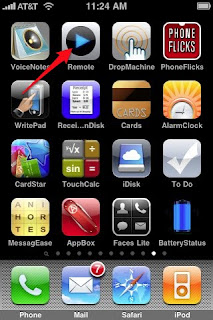


The current playing song will appear on the device. A dialog button on the remote, will allow the user to ‘Request a Song’.


The user can then select a song that he wishes to add to the playlist, from the list of the songs given.
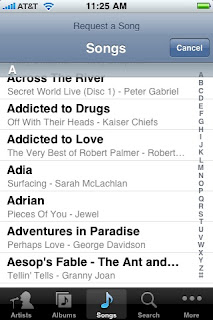


The upper left-most arrow will allow the user to view the current playlist and may tap on the ‘heart’ next to the song to vote for, as the votes increase the songs with more votes move up the playlist.
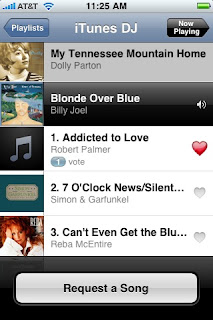


If voting is not enabled, the songs that are requested are added to the list as requested.

Renaming Photo Mail Attachments

How to: Renaming and Saving Photos from Email using Mail app, using Name Mangler Droplet.


Often times I receive multiples of photos from my kids via email. These photos come into my Mail app and I can view them and Save them from mail app.


The Save option in Mail app allows me to save each photo individually automatically to a Folder that I designate in the Mail Preferences, To designate a folder or place to always download your attachment click on General Tab and Select Downloads Folder, pop-down menu and select the Default of ‘Downloads’ Folder in your dock or ‘Other’ to pick a folder or location you wish to use.


These downloads or attachments from Mail app are given the name Photo, Photo 1, Photo 2, … and this is kind of annoying. I use another application called Name Mangler Droplet to actually rename these files with a more descriptive name.

I don’t know about most, but sometimes I download a file from the internet or mail and can’t seem to locate it on my hard drive. There is a way to find current files quickly on your Mac. Open a new Finder window and click on the ‘Today’ option under ‘Search For’ category on the left-hand side of your finder window. You will be able to scroll the files that you have downloaded for that day and can also arrange them by clicking on the view option ‘Date Created’ column.


I run Name Mangler Droplet, then drag and drop the files that I wish to rename into the Name Mangler Droplet window. I fill in the word ‘Photo’ in the Find dialog box and then add a word to describe the photos in the Replace dialog box. Then clicking on the checkmark in the top bar of the window, presto magico the files are all changed to the replacement name.


It is a fast, efficient way to rename those email image attachments that come into Mail app.