You can send yourself a direct message using Twitter. Type the letter, d and then space and then your username and the message. (d + username + message). You can send direct message from your iPhone or computer or 3rd party apps.
Example:
d Granny_Joan This is a direct message to myself.
If your message is longer than 140 characters and Twitter receives it intact, your message will be sent in two parts. But, beware: if your service provider breaks up long messages into two parts before sending the message to Twitter, Twitter will only see the d+username attached to the first message! The second part will post to the public time line as a regular update because it doesn't have the d+username preceding it.
People who have their direct message text and email notifications set to ON will receive direct messages on their phones and/or via email. Tweets sent using any of the methods described above are not public: only author and recipient can view direct messages.
Using the direct message to yourself, you can post the URL for me.com privately to yourself and access that URL from your direct messages to help locate your iPhone using the method described in previous blog post.
Tweet
Tuesday, November 17, 2009


Monday, November 16, 2009
Accessing MobileMe from iPhone
I was surfing the internet today and noticed a tweet referring to accessing MobileMe account via iPhone. Normally if one tries to do so, via Safari browser, this doesn't work.
Someone suggested using a link from a twitter app on your iPhone. So I tried it on two twitter applications: Tweetdeck and Tweetero and it worked with both apps.
First log onto your twitter account using an iPhone app and send yourself a tweet with the link to mobileme.com URL. (http://me.com/)

Click on the link in the twitter app.


Tweet
Someone suggested using a link from a twitter app on your iPhone. So I tried it on two twitter applications: Tweetdeck and Tweetero and it worked with both apps.
First log onto your twitter account using an iPhone app and send yourself a tweet with the link to mobileme.com URL. (http://me.com/)

Click on the link in the twitter app.

If your twitter app has a built in web browser, it should attempt to connect with the mobileme URL. Normally a warning page would appear, stating it best to use Safari or Firefox browser. Ignore this warning and click on 'Continue' button.

The MobileMe Login window should then appear and you should enter your username and password for your MobileMe account and click on 'Login' button.

Next you will be logged into your MobileMe account and able to access mail, calendar, etc.

You may find this a bit slower than using the apps already built into the iPhone, but the real key here is being able to use the 'FindMe' service via your friend's iPhone when you lose it out and about. You will be able to log into your MobileMe account to use the 'FindMe' service without having to be on a computer.
Tweet
Thursday, November 12, 2009
Holiday Mailouts - Using Address Book to Print Labels
As Thanksgiving approaches, I am reminded of my cousin who methodically addresses Christmas cards and sends them out during this holiday. Every year without fail, I receive a card from my dear cousin first. I was thinking today, that for some of us, the printing of labels is a major task. So I decided to blog about the ability of the Address Book application on the Macintosh. Did you know that hidden within the print feature of Address Book is the ability to print labels?
If you have most of your contacts, family and friends in your address book, you can use the 'group' feature to put them into a 'Holiday List'. Once this has been done, which is fairly easy to accomplish by merely, selecting 'New Group' from the 'File' menubar options and giving it a name say, 'Holiday List'. Then select 'All Contacts' and drag and drop each that you wish to include in this Holiday List into the group icon in the left hand column.


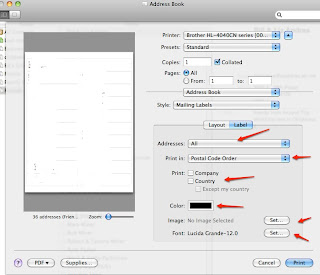
Once you have all your contacts listed within the 'Holiday List' group, then select this group and then using the 'Print' option from the 'File' menubar or the command P key shortcut, to bring up the print dialog box. The print dialog box may default to a window similar to the one below:

To the right of your printer name, you will see a down arrow, click on this arrow to bring up more options, similar to below and click on the pop-down 'address book' and select 'printer settings'. Then click on 'media type' options to select 'label'.




Tweet
If you have most of your contacts, family and friends in your address book, you can use the 'group' feature to put them into a 'Holiday List'. Once this has been done, which is fairly easy to accomplish by merely, selecting 'New Group' from the 'File' menubar options and giving it a name say, 'Holiday List'. Then select 'All Contacts' and drag and drop each that you wish to include in this Holiday List into the group icon in the left hand column.


Once you have all your contacts listed within the 'Holiday List' group, then select this group and then using the 'Print' option from the 'File' menubar or the command P key shortcut, to bring up the print dialog box. The print dialog box may default to a window similar to the one below:


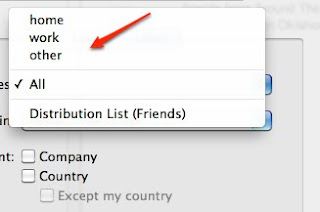
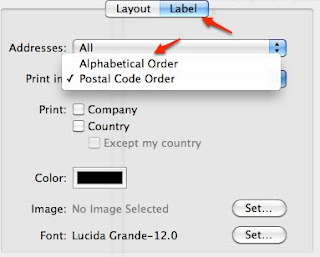
As you explore the many options, you will see pop-down menus that allow you to select the order of printing the labels (postal code or alphabetical), whether to print home/work/or other address, whether to include an image, set a color or font.


Then click on the 'Layout' tab and choose a label type from the 'Page' pop down menu. To set the page margins and gutter space between labels, and how many labels to print on a page, choose 'Define Custom'.


You can then preview the page of addresses using the 'pdf' pop down option to view in preview first.
As the holidays approach I am wondering will I get the cards and well wishes out on time or will I be sending out Valentine wishes instead? Let me be the first to wish everyone a very Happy Holiday season and Happy New Year!
Note: Whitepages.com offers a new holiday list manager and label printer. If you wish to search for an address or cross-check current listings from whitepages.com online, this would be a great way to fill in the missing addresses and contact information. If you have not built a contact list in address book, using whitepages to find the info and create a list and print the list is another great solution!

Subscribe to:
Posts (Atom)