Tuesday, January 18, 2011

Accessing Special Symbols & Characters on Your Mac

There are many sources and websites on-line that display tables of key combinations to use for typing special symbols and characters on a Mac keyboard.  I find it difficult  at times to locate the file that contains the table of these magic keystroke combinations.

So whenever, I need to use a special character in a document typed with my Mac keyboard,   I access the character Keyboard Viewer.  The Keyboard Viewer can be found amongst the menubar icons in the upper right hand-side of the menubar.


If you do not see the Keyboard Viewer icon, you need to enable it.
You can do this by:
  • Selecting Systems Preferences under the Apple Menu.  
  • Select the Language & Text icon and the Input Sources tab from the Language & Text window. 
  • Make sure the option in the left-hand column of the window Keyboard & Character Viewer is enabled. Enable Show input menu in menubar by checking the box.


You can then hold down various keys on your Mac keyboard.  Try holding down the shift key, option and command keys individually to see what symbols are produced on the keyboard.


You will see more characters, when you hold down a combination of shift and option or command keys.  All the characters that are available will be viewable on the keyboard viewer and you will then be able to ascertain the correct keys to hold down to get the symbol of your choice.

Hope you find this tip helpful.

Sunday, January 16, 2011

Testing Stealth Mode for Wifi Network on Mac

Note: A solution for my vunerable wifi network connected to Disklavier piano without password protection.

Sometimes it is necessary to have an insecure wifi network to connect to other devices in your home. This leaves your network for your computers vunerable for others to use as a free wifi hotspot in your neighborhood. I have been testing the 'stealth mode' option available on my Mac as a means to run my wifi network, but make it 'invisible' to others nearby.

It seems to be working. My wifi network is NOT showing up as an option on my iPhone or iPad. However, I am able to connect to this so called invisible or stealth network as I know the exact name that I have assigned to that network. I merely go into the system preferences on my iPhone or iPad and select wifi network and 'Other' and type in the exact name of the network to connect.

Here are the steps to setting up or creating a closed network:

To set up your wifi network on your Mac to 'invisible' or stealth mode it is necessary to run the application called 'Airport Utility'.

Select the network from the left hand column that you wish to put into stealth mode or to make invisible to others. Select 'Manual Setup'.


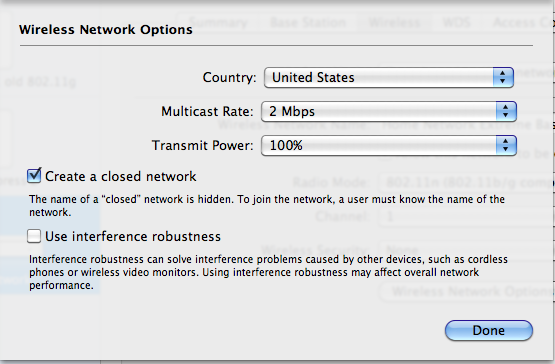
Select the 'Wireless' tab and click on 'Wireless Network Options'


A dialog box will appear, click on 'Create a closed network' and 'Done'


Select 'Update' to save changes.

At this point I also rebooted my Mac to make sure that all the changes took effect, not sure if that was necessary. When I checked my iPhone and iPad the network was NOT visible. I selected Other and typed in the exact name and was able to connect without a problem.

Next notify the members of your family that you have made some changes to the network, so that they don't panic when they are unable to connect via wifi using their iphones, ipads and computers in your home.

Saturday, December 18, 2010

Santa's Bag is Loaded with Christmas Apps for Kids


I have been downloading apps for about a week that have a Christmas holiday theme. There are some pretty cute ones that will keep most little ones entertained.

What kid doesn't enjoy decorating a gingerbread house, cookies or snowman or an elf? Check out the following apps: Dress a Elf, Build a Gingerbread House, Cookies for Santa or Snowman Maker Plus.

For the older kids that enjoy games, check out OvenBreak where you help the Gingerbread boy by nabbing jelly beans, jumping over gaps and sliding and swinging on Candy canes. Santa's Christmas Word Search is fun for finding all the holiday related words, while listening to Christmas carols and viewing the animated tree. You can also throw snowballs at the Beserk Elves. Letter Blocks 3D Christmas (game FREE) is a good word game for children and is available in several languages as well. My favorite is probably Charmed Xmas a holiday themed version of Charmed which is one of the match three type games. Although I must admit the one that I know will be a hit with my grandkids is Cut the Robe: Holiday gift. It is a hit with me as well and will keep adults entertained as well.

If you have children who like to draw or color or paint, there is a lot of coloring apps available with Christmas themes, as well as a lot of animated stories and Christmas carols available. Just search the iTunes store by typing in 'Christmas' and see what is available. Many were free throughout the season, but have now gone to 99 cents. This is certainly a nice and inexpensive way to thrill little ones.