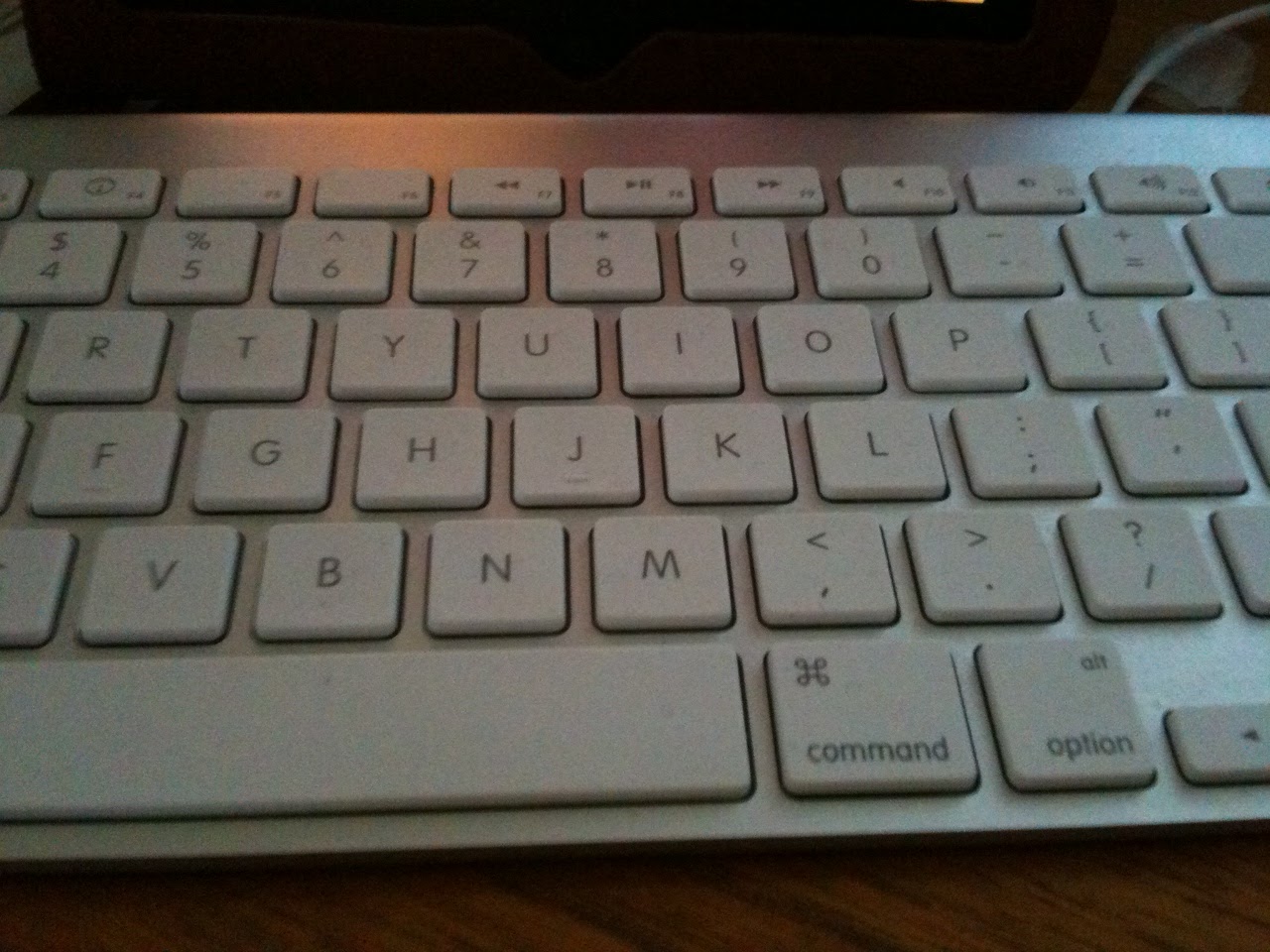
If you use an iPad for any type of writing or journaling, you probably use Apple's wireless bluetooth keyboard. I decided to post a list of some of the
keyboard shortcuts that work with the keyboard bluetoothed with an iPad or iPad 2 or even your iPhone.
To pair your keyboard with your device, select General>Bluetooth in the Settings options. Turn
bluetooth ON and also
turn on your bluetooth keyboard by pushing in the button on the keyboard that is located on the upper right-hand side of the physical keyboard. Your mobile device will try to discover the bluetooth keyboard and once that it finds the keyboard, a dialog box requesting you to
enter a PIN number on your keyboard will appear on the screen. Once the
PIN has been entered, be sure to
hit the return or enter key. You should then be connected and can start typing away.
Keyboard Shortcuts for Controlling Device Settings:
F1 - decreases the brightness on the device screen
F2 - increases the brightness on the device screen
Space Bar - when your screen has gone to sleep will wake it up.
If you want to play some iPod app music in the background while you type
F8 - play or pause media
F9 - navigate forwards for media playing, next song
F7 - navigate backwards for media playing, previous song
F10 - mutes the media
F11 - decrease the volume for the media playing
F12 - increase the volume for the media playing
Option (or Cmd or Shift or Cntrl) + F9 - skips to the next album
Option (or Cmd or Shift or Cntrl)+ F7 - returns to the previous album
Keyboard Shortcuts for Selecting Text or Moving within text paragraph or document:
Cmd A - Select All
Cmd C - Copy Text
Cmd X - Cut
Cmd V - Paste
Option + Delete - delete entire words one at a time to the left of the cursor
Cmd Z - Undo
Shift + Cmd + Z - redo
Shift + Right Arrow - selects/deselects letter by letter moving to the right
Shift + Left Arrow - selects/deselects letter by letter moving to the left
Shift + Up Arrow - selects/deselects text when moving up
Shift + Down Arrow - selects/deselects text when moving down
Option + Shift + Right Arrow - allows you to select/deselect text word by word when moving right
Option + Shift + Left Arrow - allows you to select/deselect text word by word when moving left
Option + Shift + Up Arrow - allows you to select/deselect text line by line when moving up
Option + Shift + Down Arrow - allows you to select/deselect text line by line when moving down
Cmd + Up Arrow - move the cursor to the beginning of document
Cmd + Down Arrow - move the cursor to the end of document (also works with Cntrl)
Cmd + Right Arrow - move the cursor to the end of the line (also works with Cntrl)
Cmd + Left Arrow - move to the beginning of the line
Tab - indents the text
Right, Left, Up and Down Arrows - will move the cursor in the body of the text
Eject Button (top row right-hand side of keyboard) - disconnects bluetooth keyboard to allow accessing the virtual keyboard on the device
Cmd + Spacebar - select a different (International) keyboard if one has been added to the list of available keyboards in the General Settings for the device.
Keyboard Shortcuts to Yield Special Symbols - Using option key and letters/numbers yields special symbols, and using option shift and a letter/numbers produces some additional symbols. Option w - yields the symbol ∑
Option r - yields the registered trademark symbol ®
Option d - yields the symbol sigma ∂
Option p - yields the symbol for pi π
Option g - yields the symbol for copyright ©
Option 2 - yields the symbol for trademark ™
Option x - yields the symbol for approximately equal to ≈
Option v - yields the square root symbol √
Option k - yields the degree symbol ˚
Option 4 - yields the cent symbol ¢
Option j - yields the delta symbol ∆
Option , - yields the lesson than and equal to symbol ≤
Option . - yields the greater than and equal to symbol ≥
Option / - yields the division symbol ÷
Option n + (then release option key) followed by letter n - yields the ñ
Option e = (then release option key) followed by letter e - yields é
Option ` = (then release option key) followed by a or e or i- yields à and è and ì
Option 5 - yields the infinity sign ∞
Option 8 - yields the bolded bullet •
Option ; - yields the ellipse symbol (3 dots in a row) …
Option b - yields the integral symbol ∫
Option 1 - yields the upside down exclamation point ¡
There are also a number of symbols that can be typed when using the shift key along with the option key and a letter/number
Option + Shift + k - yields the apple symbol
Option + Shift + 3 - yields the less than symbol ‹
Option + Shift + 4 - yields the greater than symbol ›
Option + Shift + letter o - yields the null symbol Ø
Option + Shift + 2 - yields the Euro symbol €
Option + Shift + equals symbol = - yields the ± symbol
Option + Shift + left bracket [ - yields the right double quotes ”
Option + left bracket [- yields the left double quotes “
Option + Shift + right bracket ]- yields the right single quote ’
Option + right bracket ] - yields the left single quote ‘
Option + Shift + front slash / symbol - yields the upside down question mark used in Spanish ¿
Presently, not all keyboard shortcuts work with the iPad and iPhone, such as some important ones for bold, italics and other text formatting within apps. Not all apps will allow using the keyboard shortcuts. The trick of hitting the space bar twice to add a period and start a new sentence does not work.