After trying to come up with a way to combine pdf files last nite in the previous post, I woke up to a tweet that referenced an article in MacWorld by Christopher Breen at:
http://www.macworld.com/article/143023/2009/09/combine_pdf_snow_leopard.html
So I decided to try the technique outlined in the article. I decided that it might be easier to see the flow of steps by using 3 jpeg files which I individually resaved in pdf format.
I have 3 simple one page pdf’s now that are merely photos which have been saved as a pdf document. This will be easier to illustrate how the combining efforts take place.
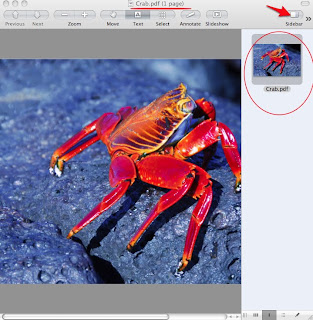
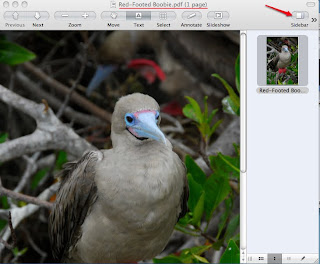
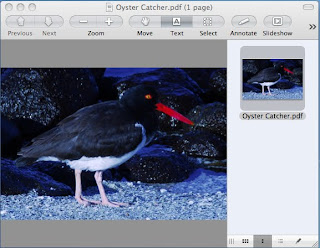
I have set the ‘Preferences’, in ‘Preview’ to ‘Open groups of files in the same window’ . So I select all three of the pdf files and double click to open them up in one Preview window. As you can see in the heading at the top of the window, it says that I have one page highlighted from the crab.pdf and 3 documents for a total of 3 pages. Each of the icons in the sidebar represent a separate pdf document at this time.
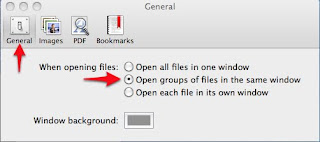
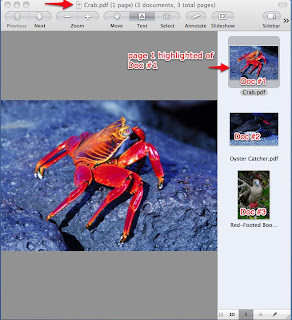
Now I am going to put all 3 Docs in the same pdf file, by dragging the last two pdf documents 2 and 3 into the icon of the 1st pdf document icon.
I highlight the Oyster Catcher.pdf (Doc #2) and drag it over the icon of Crab.pdf. As I do this a green circle with a plus sign appears as I add this document to the first document. If I hover the cursor over the 1st Document after the addition of 2nd pdf file to the first pdf file, a circular arrow appears which indicates that this first document now is expandable.
Note also the heading at the top of the window, now reads that I have the Oyster.pdf one page highlighted and there are still three documents with 4 total pages.
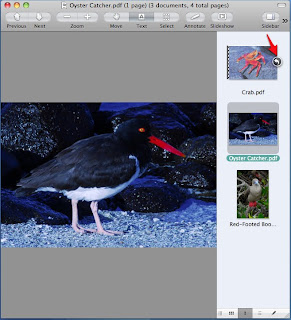
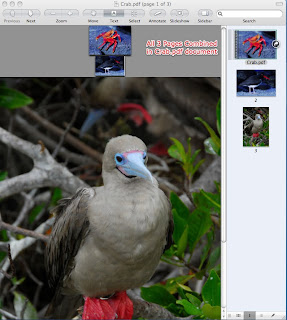
When I click on the circular arrow and expand the 1st document, you can now see that the first pdf document now has an additional page, which is the oyster catcher photo page that I added to that document.
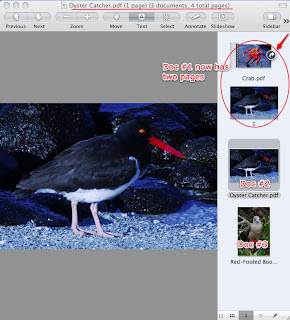
Now I drag the third document into the 1st document icon to add the last document to the first document. Again the green circle with plus sign indicating that I am adding a page to the first document appears.
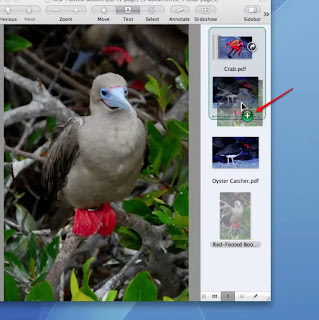
In the screen shot below, you can see the 3 pages now in document #1.
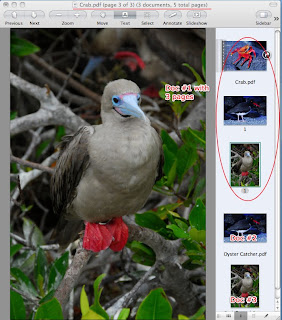
This is a screen shot of document #1 with the pages collapsed, showing all 3 documents are still present in the Preview window.
The Macworld article recommended selecting "Save All" option from the 'File' menu in Preview to save all the pages in the first document. Make sure that you have selected the first document for this save.
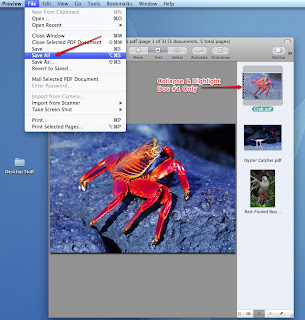
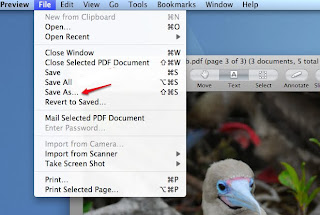
The 'Save All' method did not allow me to give this document a new name, but automatically saved it as crab.pdf. I find this a problem if I did want to preserve the individual pdf doc and I suggest using the 'Save As' option in the 'File' menu instead. This will offer you the opportunity to rename the file.
I would suggest trying this new method with some test pdf files that you can experiment with the results to familiarize yourself with the new methods in Preview that allow for combining pdf files.


